1. Wallet Installation
Download the application from an official store (Google Play or App Store). This ensures you receive the authentic and secure version.

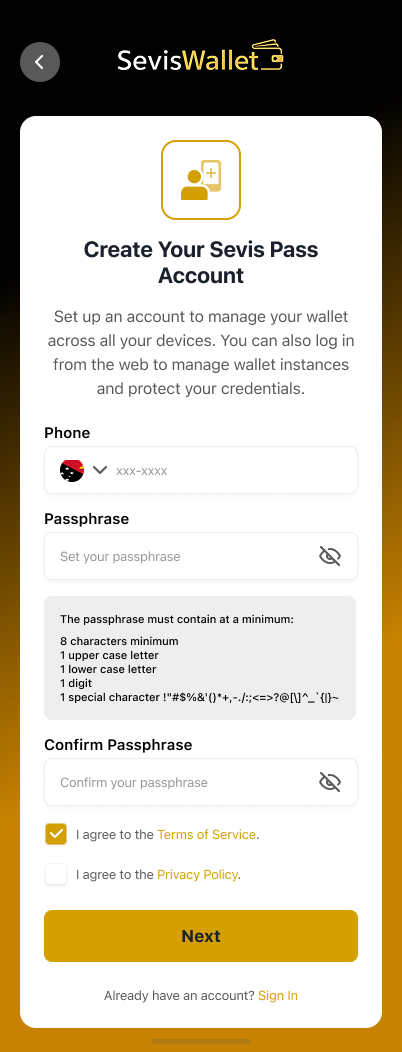
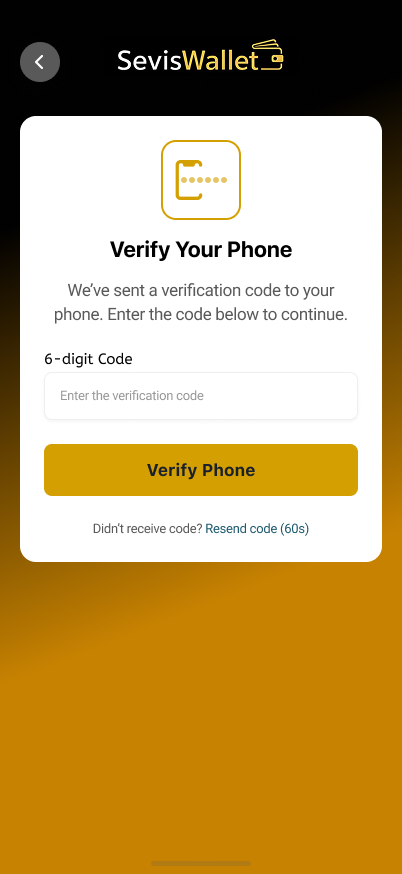
2. Phone Number Verification
You will receive a one-time password (OTP) via SMS to confirm ownership of the registered phone number. Without this step, identity creation cannot proceed.
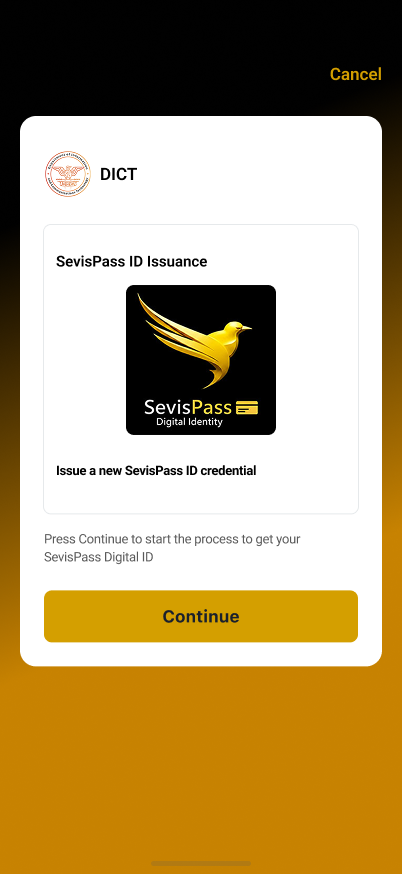
3. Identity Validation
To ensure the integrity of the identity enrollment process and to prevent impersonation or fraud, identity validation is performed through a structured, multi-step process.
Step 1 – Demographic Data Capture
The enrollment process begins with the capture and verification of the applicant’s demographic information. This data is reviewed to ensure completeness, consistency, and eligibility before proceeding to the next validation steps.
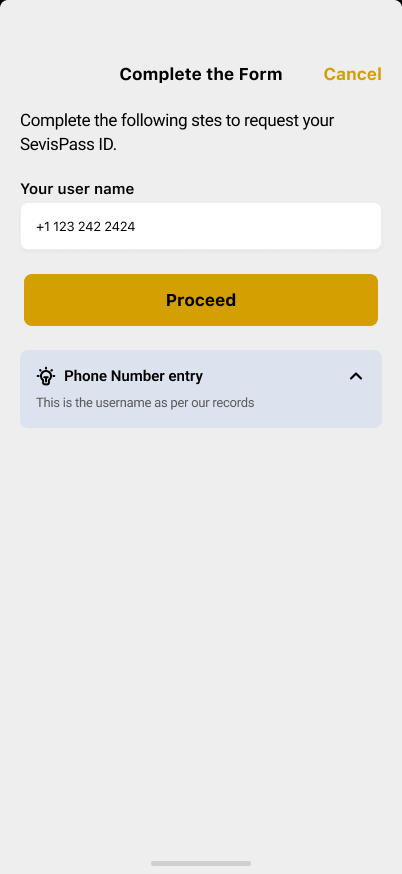
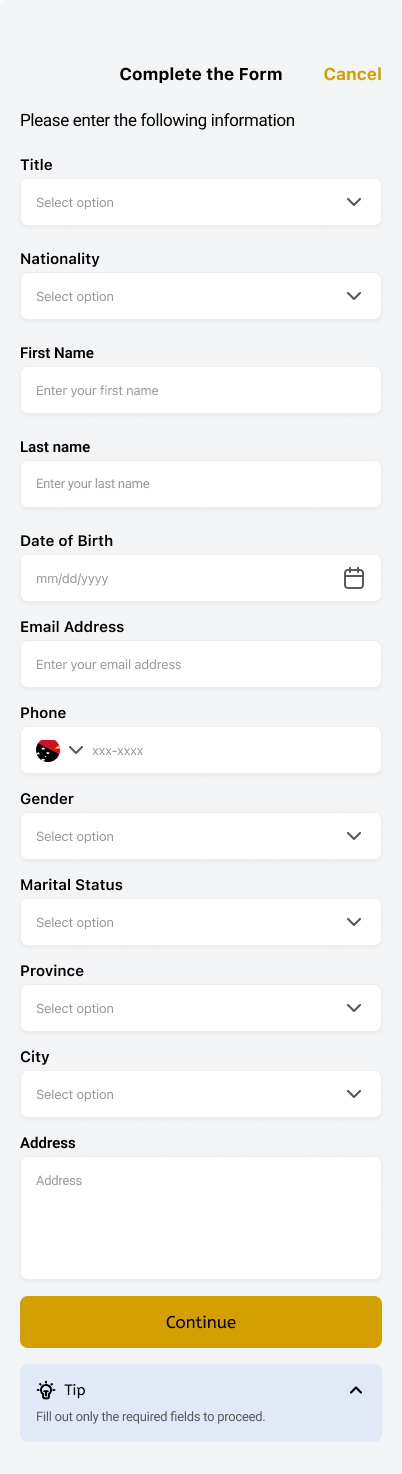
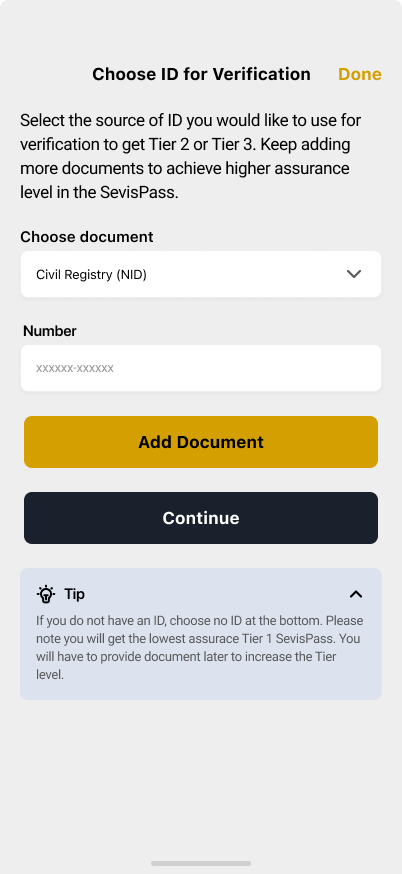
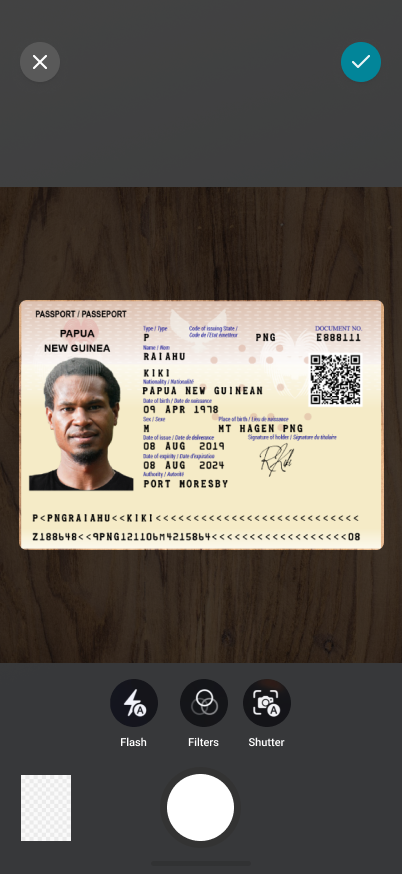
Step 2 – National Identity Document Capture
A live capture of the applicant’s national identity document is performed to establish possession of a valid physical credential. This step helps validate the authenticity of the document and its association with the applicant.
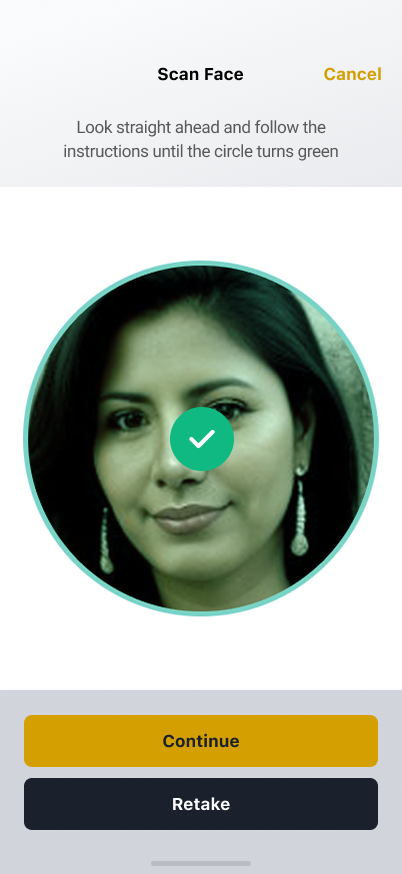
Step 3 – Facial Biometric Capture
A live facial biometric capture is performed to verify the applicant’s identity. This step confirms the physical presence of the individual and ensures consistency between the applicant, the captured document, and the demographic data provided.

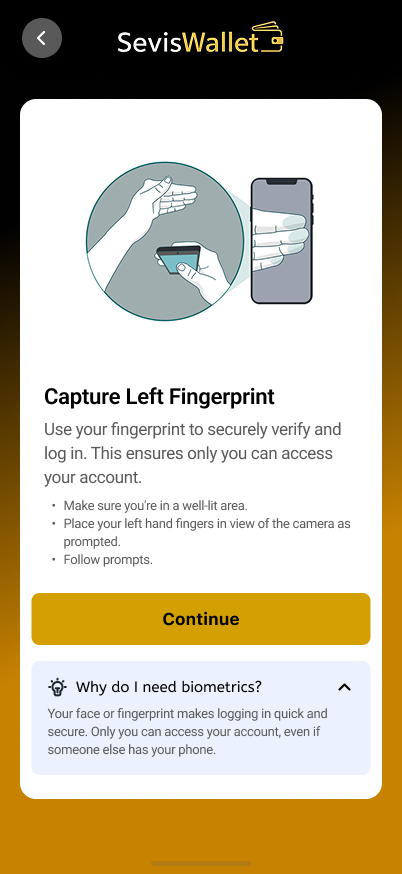
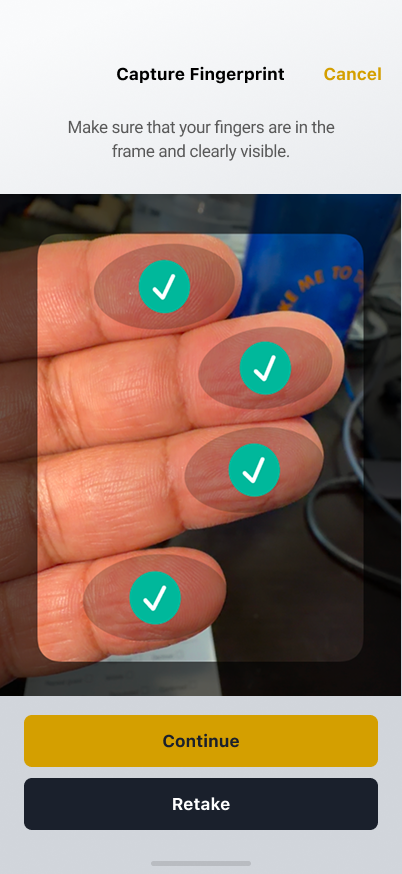
Step 4 – Contactless Ten-Fingerprint Capture
The final step consists of capturing all ten fingerprints using a contactless fingerprint capture method through the mobile device camera. This approach eliminates the need for external hardware while maintaining biometric accuracy.
This process requires a mobile device equipped with at least 8 megapixels (real resolution), autofocus, and camera flash, ensuring sufficient image quality for reliable fingerprint extraction.
All demographic and biometric data are securely encrypted during transmission and processing and are used exclusively for official identity verification and registration purposes.
4. Digital Credential Issuance
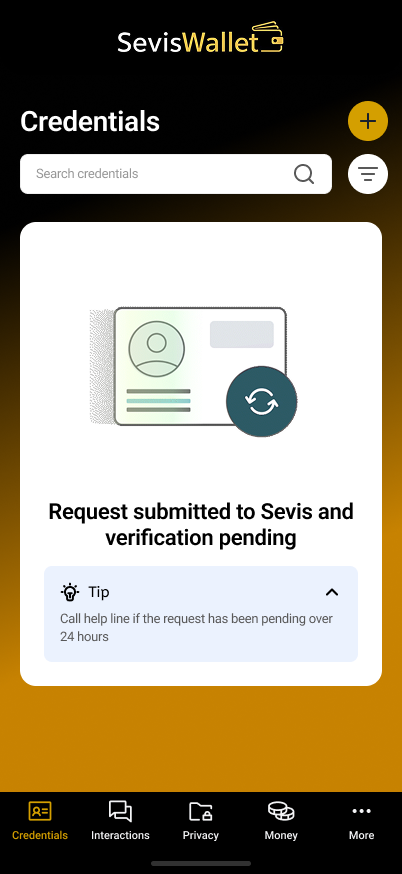
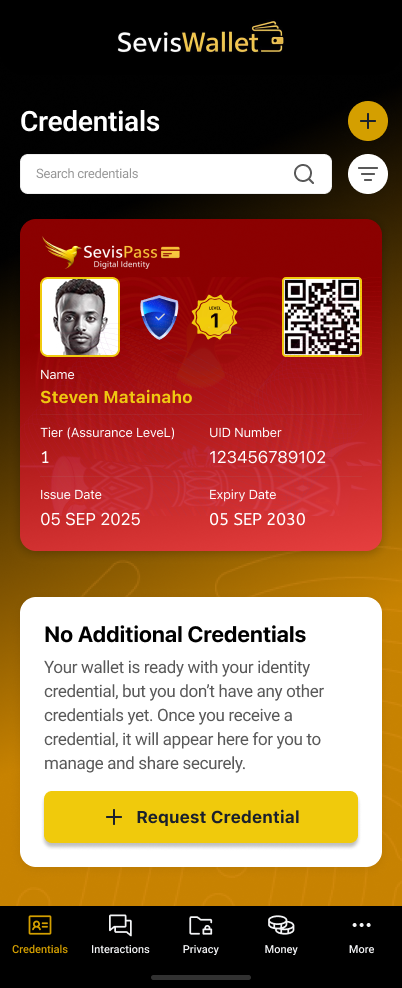
Once all steps are completed, your digital identity credential (Sevis Pass) is issued and securely stored within your wallet.
🎥 Video Tutorial
Learn how to create your Sevis Pass step by step.
Download the Official App
Select your platform and follow the installation instructions.

Android Application
This application is officially provided by the program administrators. Installation from unofficial sources is not recommended.
 Download Android App

iOS Application
The official iOS application is currently available through Apple TestFlight while App Store approval is in progress.
Installation steps:
- Install the TestFlight app from the Apple App Store.
- Open the TestFlight application on your device.
- Join the program using the QR code below.
- Download and install the application from TestFlight.
This TestFlight version is an official release provided for controlled distribution prior to public App Store availability.
Frequently Asked Questions (FAQ)
I did not receive the OTP code

- Check that your phone has signal or an active internet connection.
- Make sure airplane mode is disabled.
- Verify that the phone number entered is correct.
- If using dual SIM, confirm the registered line is active.
- Wait 60 seconds before requesting a new code.
- Check if your phone blocks messages from unknown numbers.
Face capture is not working
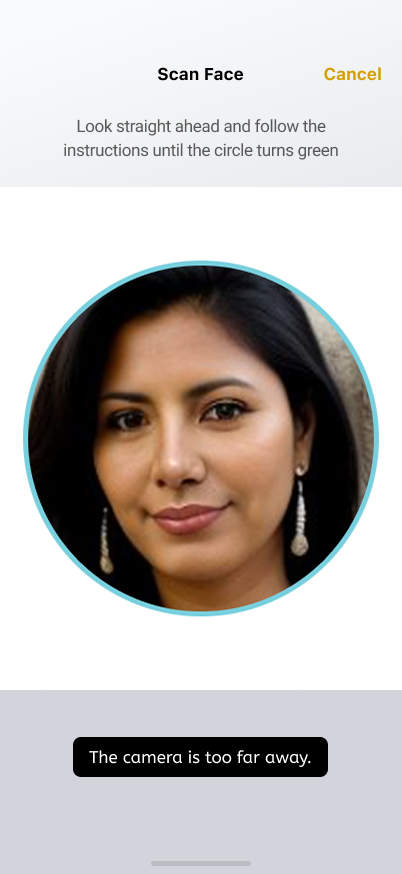
- Follow the on-screen instructions carefully.
- Use a plain background.
- Avoid having other people behind you.
- Ensure good lighting without backlight.
- Remove sunglasses, masks, or face coverings.
- Allow camera permissions in your phone settings.
- Keep your face inside the frame and remain still.
- Restart the app if the camera does not respond.
My digital credential was not issued
- Check the “Interactions” section for details.
- Your validation may still be under review.
- If it does not progress after a few hours, contact support.
Liveness check failed
- Perform the requested movements (if need it, for example camera too far away).
- Avoid moving backgrounds or people behind you.
- Use a well-lit environment.
The app shows an error or closes unexpectedly
- Restart your phone and try again.
- Ensure you have the latest app version.
- Check available storage space.
- If the issue persists, contact technical support.
Support & Citizen Assistance
If you need help with registration or access, please contact us through any of the official channels below.